Fire Link Pro Instruction Manual
Learn how to set up and make the most of your Fire Link Pro data acquisition system
Thank you for purchasing a Fire Link Pro device from Fire Laps, Inc.! When coupled with the Fire Laps platform, we're confident this exciting device will enhance your motorsports experience for years to come.
This guide will take you through the basics of installing and connecting the device and configuring it to your account. The process is easy, and you'll be up and running in no time.
Contents
- Mounting Your Fire Link
- Wiring your Fire Link Pro to your vehicle
- Starting Your Fire Link
- Connecting Your Fire Link to Your Fire Laps Account
- Configuring Vehicle Data with Your Fire Link Pro
- Using Your Fire Link
- Alternate Connection Methods
- Privacy Settings
- Guarantee and Support
- Other Terms and Conditions
Mounting Your Fire Link
The Fire Link relies on a GPS signal to gather your data and additionally an LTE connection to stream your data, so proper installation in your vehicle is important.
The main device should be mounted in the driver's view with the supplied strips of 3M Dual Lock Velcro. The specific location is not important, but the LEDs should ideally be visible to the driver so you can confirm the unit is fully connected before you begin the session.
Once the box is mounted, connect the external GPS/LTE antenna to it with the threaded terminals. Take care to install each antenna connection to the proper port as labeled. The antenna should be installed in the center of the vehicle, either on the dashboard or directly behind the seats. The most important factor in deciding on a mounting location is that the antenna must have a clear view to the sky through either your front or rear window.
The supplied antenna has a strong internal magnet that can be used, but double stick tape can also be used to attach it. The antenna cord is quite long, so roll up any excess cord length and secure it with zip ties inside the vehicle.
On open cockpit vehicles or motorcycles, the antenna can be installed anywhere on the outside of the body in a similar manner. Again, it is important to have the antenna in the center of the vehicle with an unobstructed view to the sky. Fire Laps will be offering specific vehicle mounting solutions for bikes, karts, and open cockpit vehicles soon.
Thermal considerations
Your Fire Link can operate easily until the internal temperature reaches 70°C (158°F), and its performance will be reduced and internal damage may be incurred above 85°C (185°F). To prevent this from happening, Fire Laps recommends the following:
- Check what's near your Fire Link. If your Fire Link is mounted inside the dash or near other components in your vehicle that heat beyond 65°C (149°F) during normal track sessions, we suggest finding a different place to mount it.
- Move it out of the sun. Fire Links placed in direct sunlight will absorb more heat than otherwise. If possible, we recommend placing your Fire Link in a place that does not receive direct sunlight.
If the temperature starts exceeding thresholds for healthy operation, we'll send you a flag on your Fire Laps account to notify you of this occurrence and provide tips for avoiding it in the future.
Wiring your Fire Link Pro to your vehicle
Supplying Power to Your Fire Link
The Fire Link does not have an internal battery, and thus requires a power source. Thanks to an internal power converter, the Fire Link can be supplied with a range of voltages from 5V to 16V through the integrated four-pin DTM connector.
Our #1 recommendation for all vehicles is to supply the device with switched 12V power, so every time the vehicle is on, the Fire Link is connected and ready to go. You'll never have to worry about powering it or charging it at the track and everything will work automatically. It is programmed to only display your data to other users when you are physically at a race track.
Your device is supplied with a pigtail that should be wired to a switched 12V source and ground. For street/track cars with factory ignition, any wire in the fusebox that receives 12V when the key is on will work.
In race cars with a master power switch, we recommend wiring to a source that receives 12V immediately when the power switch is flipped, even if everything else in the vehicle is off. This allows the device to stay live and connected at the track even if the engine is turned on and off.
Wiring the Fire Link to 12V power from the master switch is especially important for endurance teams, as you do not want the device to shut off and reboot during pit stops.
For the original Fire Link, we offer a DTM to USB cable that can power the device from a USB car charger or battery pack. Because CAN connectivity is not available over USB, this cable is not currently offered for the Fire Link Pro, so plan on hard wiring your Fire Link Pro with the supplied wiring.
No matter which input voltage you choose, the Fire Link always requires the same 14.4W of power, so the current it draws depends on the supplied voltage. The table below shows the current your power source must be able to supply at common supported voltages.
| Voltage | Current | Power |
|---|---|---|
| 5V | 2.9A | 14.4W |
| 9V | 1.6A | 14.4W |
| 12V | 1.2A | 14.4W |
| 14V | 1.1A | 14.4W |
| 16V | 0.9A | 14.4W |
Connecting your Fire Link Pro to the CAN bus
While the original Fire Link has a two pin power connector, your Fire Link Pro's integrated DTM connector has four pins: power and ground, plus CAN High and CAN Low. Wire power and ground as described in Supplying Power to Your Fire Link above. To collect vehicle data, additionally connect the CAN High and CAN Low wires of the supplied pigtail to your vehicle:
- To connect directly to your vehicle, wire them to the corresponding CAN High and CAN Low lines of your vehicle's CAN bus, or to pins 6 (CAN High) and 14 (CAN Low) of your vehicle's OBDII port.
- To connect through an AiM data logger or dash, wire them to the CAN expansion port of your AiM device.
Starting Your Fire Link
Your Fire Link Pro has four LEDs to indicate the status of the device: the Power LED to show when it's powered on, the Startup LED for the process of the device startup and network initialization, the Live LED for the status of its GPS signal and connection to Fire Laps, and the CAN LED for the status of CAN bus data collection. Under normal operating conditions, the Startup and Live LEDs will progress from blinking slowly to blinking quickly to solid. Once the Power, Startup, and Live LEDs are solid, your device is fully connected and you are ready to race!
The whole startup process will normally take 1-3 minutes, though the exact startup time depends on the available network conditions and the visibility of GPS satellites. Even if your device hasn't obtained an LTE connection, you can still use it in offline mode.
LED meanings
Your Fire Link Pro has four LED indicators that together indicate the state that your Fire Link is in. Below is a table of all possible states of the Power, Startup, and Live LEDs and their meanings; the blue CAN LED is described in its own table further below.
| Power | Startup | Live | Meaning |
|---|---|---|---|
 | | | Power is not connected, check your wiring or contact Fire Laps |
| Meaning: Power is not connected, check your wiring or contact Fire Laps | |||
 | | | Power is on, device is starting up |
| Meaning: Power is on, device is starting up | |||
|  (slow) (slow) | | Initializing connection to LTE network |
| Meaning: Initializing connection to LTE network | |||
| (slow) |  (slow) (slow) | Initializing connection to LTE network and waiting for GPS fix |
| Meaning: Initializing connection to LTE network and waiting for GPS fix | |||
| (slow) | (fast) | Obtained GPS fix, initializing LTE connection and operating in offline mode |
| Meaning: Obtained GPS fix, initializing LTE connection and operating in offline mode | |||
| (slow) | (solid) | Obtained GPS fix and currently streaming over WiFi or Bluetooth |
| Meaning: Obtained GPS fix and currently streaming over WiFi or Bluetooth | |||
| (solid) | (slow) | Connected to LTE network, waiting for GPS fix |
| Meaning: Connected to LTE network, waiting for GPS fix | |||
| (solid) | (fast) | Connected to LTE network and obtained GPS fix, connecting to Fire Laps |
| Meaning: Connected to LTE network and obtained GPS fix, connecting to Fire Laps | |||
| (solid) | (solid) | Obtained GPS fix and currently streaming |
| Meaning: Obtained GPS fix and currently streaming | |||
| (solid) | | Vehicle stationary and connected to LTE, Fire Link in standby mode |
| Meaning: Vehicle stationary and connected to LTE, Fire Link in standby mode | |||
| | (fast) | Recovery mode, leave it powered on if possible or contact Fire Laps if this persists. |
| Meaning: Recovery mode, leave it powered on if possible or contact Fire Laps if this persists. | |||
In addition to the three LEDs above, your Fire Link Pro has a blue CAN LED that indicates the status of CAN bus data collection (see Configuring Vehicle Data with Your Fire Link Pro below). Below is a table of its possible states and their meanings.
| CAN | Meaning |
|---|---|
| No CAN data is being received or the CAN bus is inactive. Check your wiring, that a CAN configuration has been chosen in the device settings, and that the CAN configuration's bitrate matches the bitrate of the connected CAN bus |
 (slow) (slow) | Seeing CAN frames, but they are not readable by the current CAN configuration |
| (fast) | Seeing CAN frames that are readable by the current CAN configuration, but not the ones it is configured to stream and collect |
| (solid) | Collecting and streaming the CAN frames specified in the CAN configuration |
The device takes a while after powering on before it begins trying to parse CAN data, so wait until the Live LED is at least flashing before relying on the CAN LED to reflect the true state of CAN bus data collection.
Connecting Your Fire Link to Your Fire Laps Account
Every Fire Link needs to be connected to a Fire Laps account with either a free trial, paying membership (which may be included in your Fire Link purchase), or weekend pass.
- Every Fire Link has a sticker with a unique QR code attached to it. Scan this with your smartphone or tablet, and you will be taken to Fire Laps to connect your Fire Link.
- If you were prompted to log into your Fire Laps account, do that next. Otherwise, skip this step. If you do not have a Fire Laps account yet, tap the link to create a new account, entering your payment information and verifying your email. You may need to scan the QR code again and possibly log in to be directed to the next step.
- Assuming your device was able to be linked, you will be shown a message indicating this, as well as instructions on powering and mounting your Fire Link.
- If you haven't already, power on your Fire Link by attaching it to its power source, and your Fire Link will begin its startup process. Keep this page open and wait for it to report that your Fire Link is online. When it reports that your Fire Link is online, the Power, Startup, and Live LEDs on the Fire Link should all be solid, indicating that a successful connection has been established. See the LED meanings table for a thorough description of what each LED state means.Warning: This step will continue reporting that the device is offline if you do not have an active membership or weekend pass. Go to your membership settings and choose a Fire Laps membership other than the free Basic plan to enable your device.
- Optionally, once your Fire Link's connection is established, navigate to your Fire Laps Live account settings to update your device settings and privacy settings related to Fire Laps Live.
Your Fire Link is now fully active and connected to your Fire Laps account!
Configuring Vehicle Data with Your Fire Link Pro
In addition to GPS telemetry, your Fire Link Pro can collect data directly from your vehicle's CAN network, such as engine RPM, throttle and brake inputs, temperatures, and pressures, and stream it to Fire Laps alongside your GPS data. Setting this up involves two steps: wiring your Fire Link Pro to your vehicle's CAN bus as described above, and creating a CAN configuration that tells your Fire Link Pro which data to collect.
Once your Fire Link Pro is wired to your vehicle, create a CAN configuration to tell it which data to collect. Go to your Fire Laps Live account settings, find your Fire Link Pro in the device listing, and click the Configure button. Below the WiFi settings, you'll find the CAN settings, which will walk you through the process in three steps: choose how your Fire Link Pro connects to your vehicle, select the configurations that match your setup, and choose the data channels you want to collect.
Connecting directly to your vehicle
If your Fire Link Pro is wired straight into your vehicle's CAN bus or OBDII port, choose "Connect directly to my vehicle." You can then pick an ECU configuration, an OBDII configuration, or both:
- ECU configuration: If your vehicle's ECU is supported by Fire Laps, select the matching ECU configuration and your Fire Link Pro will decode the messages your ECU broadcasts on the CAN bus.
- OBDII configuration: If your vehicle supports OBDII over CAN, your Fire Link Pro can request data from your vehicle through the standardized OBDII interface, even if your ECU isn't directly supported.
Incompatible combinations are hidden automatically. For example, some ECU configurations operate in listen-only mode, where your Fire Link Pro never transmits on the CAN bus; since OBDII works by actively requesting data from the vehicle, these ECU configurations can't be combined with an OBDII configuration. Likewise, two configurations that require different CAN bitrates can't be selected together.
If your ECU isn't in the list of available configurations, contact support@firelaps.com — we are continually adding support for more ECUs.
Connecting through an AiM device
If your vehicle is already equipped with an AiM data logger or dash, your AiM device can read your vehicle's data and relay it to your Fire Link Pro:
- Wire your Fire Link Pro's CAN High and CAN Low wires to your AiM device's CAN expansion port, as described in the wiring section above.
- Using AiM's Race Studio software, configure your AiM device to broadcast its data on the CAN expansion port.
- In the CAN settings, choose "Connect through an AiM device." The AiM configuration will be selected for you automatically; if more than one is available, select the one that matches your setup.
Choosing your data channels and bitrate
Each configuration you selected will list the data channels it can provide. Check the channels you want your Fire Link Pro to collect and stream to Fire Laps.
Finally, select the CAN bitrate that matches your vehicle's CAN network. If you're unsure, check your vehicle's documentation or try different bitrates to see which one works with your setup. Some configurations require a specific bitrate; in that case, the bitrate is set automatically and can't be changed.
When you're done, click Save. If your Fire Link Pro is online, it will briefly disconnect and reconnect to apply the new configuration; otherwise, the configuration will be applied the next time it connects. If your Fire Link Pro is in standby mode, you may need to power cycle it for it to receive the update. Once your Fire Link Pro is running with your new configuration, the blue CAN LED shows the live status of CAN data collection; see the LED meanings table above.
The CAN LED is also your best tool for verifying your configuration. With the vehicle on, a fast flashing or solid CAN LED means your Fire Link Pro is reading your vehicle's data. If the CAN LED stays off or flashes slowly, your CAN configuration is wrong; keep trying different configurations and bitrates until you see a fast flashing or solid CAN LED.
Using Your Fire Link
Using your Fire Link is easy: as soon as it's powered on and connected to the network, it will passively stream your data to Fire Laps servers for live streaming and analysis, and once your session is done, you'll have Fire Laps analytics and coaching features at your fingertips.
Before the race
Since the Fire Link may take a couple minutes to establish a cellular connection and GPS fix, we recommend starting your Fire Link device at least 2-3 minutes before you head out on track for warm-ups. If your Fire Link is hardwired into your car, this would involve flipping on the master power switch and/or turning on your car a few minutes before going out on track. If your Fire Link is already in standby mode, it will automatically reconnect as soon as you start moving.
During the race
During your race, you won't need to worry about your Fire Link's operation or do anything different from what you'd normally do. Everything will be happening in the background in a hands-off manner, so you can focus on your racing and vehicle. Each time you cross the track's finish line, your Fire Link will send all GPS and vehicle data readings from the previous lap to the Fire Laps servers, and we'll start crunching the numbers in the background so your session analysis will be ready for you when you're done.
After the race
When you're done with your race, simply bring the device into the pit area or paddock and stop your vehicle. You may turn off your Fire Link at this time. Fire Laps will wait a couple minutes after the device goes offline to finalize the session analysis, and Intelligent Lap Coach members will have their coaching tips start generating in the background. Alternatively, if you choose to leave your Fire Link on (either because your vehicle is still running or your Fire Link is wired to the master power switch), your Fire Link will enter standby mode so you can quickly reconnect to Fire Laps when you start moving again.
Your session will now be visible on your Fire Laps dash. However, in order to see coaching tips, you'll need to finish your session upload by selecting or entering your vehicle information and session type, as well as choosing groups to share your session with. Once you've done this and the session is saved, your coaching tips will be shown to you so you can go faster next time around!
When you analyze your session, the vehicle data collected by your Fire Link Pro will appear alongside your GPS telemetry in the analysis graph. Fire Laps is actively developing more features for analyzing your ECU data, so stay tuned!
Offline mode
While most tracks have enough cell service to let you live stream your data over a 4G LTE connection, weak signal or poor network conditions may make it difficult for your Fire Link to establish a reliable network connection during the race. In these cases, while you won't be able to live stream your telemetry and thus have access to real time analysis from Fire Laps, your Fire Link will save GPS measurements and CAN data from your session. Next time your device establishes a network connection, the whole session will automatically be uploaded to Fire Laps, where you can analyze and learn from your data after the race.
When your Fire Link is in offline mode, you will see the red Startup LED flashing slowly and the orange Live LED flashing quickly. This means that your Fire Link is saving your GPS measurements and CAN data and you're ready to race. If at any time during the race your Fire Link successfully establishes a network connection, it will automatically upload all data from your current session and continue uploading any future telemetry that you generate during your race. In the rare cases that your Fire Link never fully connects to the network before being powered off, your GPS measurements and CAN data are also saved to persistent storage on your Fire Link and will be uploaded to Fire Laps the next time it connects to the network.
Standby mode
When your Fire Link detects that your vehicle is stationary for a few minutes, it will enter standby mode. In standby mode, the Fire Link disconnects from the Fire Laps servers and the session you were streaming is finalized and made available to analyze and use for coaching, all while remaining connected to its cellular network and retaining its GPS fix as long as it stays powered on and within signal range and view of GPS satellites. Fire Links in standby mode will have their red Startup LED on and their orange Live LED off. Once your Fire Link again detects that your vehicle is moving, it will quickly reconnect to the Fire Laps servers and begin streaming a new session. Reconnecting to Fire Laps from standby mode may only take 5-10 seconds instead of the 1-3 minutes required for a full startup cycle, meaning you'll be back on the live stream almost immediately.
The blue CAN LED is unaffected by standby mode: if your Fire Link Pro is seeing CAN frames, the CAN LED will continue to reflect their status as usual. However, CAN data collection and saving is turned off during standby mode, so any CAN data seen while in standby mode will not be saved or available for analysis.
All Fire Links, no matter how they're wired, will go into standby mode if the vehicle is stationary. To make the best use of standby mode, consider wiring your device to the master power switch to make sure it remains connected even after shutting off the vehicle so you'll be ready right away for your next session.
Power saving mode
If your Fire Link's power source can't reliably supply enough power, it may shut off and restart over and over while it powers up its radios, never managing to finish starting. Power saving mode is built for exactly this situation: it cuts your Fire Link's power draw to a minimum so it can start dependably on a weak power source and stay reachable while you sort out the underlying power problem.
While power saving mode is on, your Fire Link runs its processor at a reduced speed and keeps its WiFi, Bluetooth, and GPS radios turned off, relying solely on its cellular connection to reach Fire Laps. Because of the reduced processor speed, your Fire Link will take noticeably longer than usual to start up. And because GPS acquision will only start after your Fire Link has initialized a connection to Fire Laps, getting a GPS fix will take longer as well.
To turn power saving mode on or off, go to your Fire Laps Live account settings, find your device in the listing, and click the Configure button. You'll find the power saving mode setting at the top of the form under "Power & connectivity". After you save the change, your Fire Link will pick it up the next time it connects to Fire Laps, and the new setting takes full effect the next time it starts up, so power cycle your Fire Link to complete the change.
Your Fire Link can also turn power saving mode on by itself: if several starts in a row fail partway through in the pattern of a weak power source, it will enable power saving mode on its own and try again. When this happens, the power saving mode checkbox in your device settings will show as on, and it will stay on across power cycles until you turn it off, and you will get a flag in your Fire Laps account informing you of this. You can operate in power saving mode if rewiring your setup is not an option, or if you don't need WiFi or Bluetooth and don't mind waiting an extra minute to have your device connect to the network and acquire a GPS fix. Otherwise, once your power source is sorted out, you can simply turn power saving mode off in your device settings and power cycle your Fire Link to return to normal operation.
Alternate Connection Methods
While the primary way your Fire Link connects to Fire Laps is over an LTE connection, in circumstances where no cellular connection is available, Fire Laps offers two other ways to connect to your Fire Link.
Connecting over WiFi
To give your Fire Link credentials to connect to a nearby WiFi network, go to your Fire Laps Live account settings, find your device in the listing, and click the Configure button. Enter your WiFi credentials (make sure to carefully spell the SSID and password correctly) and click Save (see figure below).
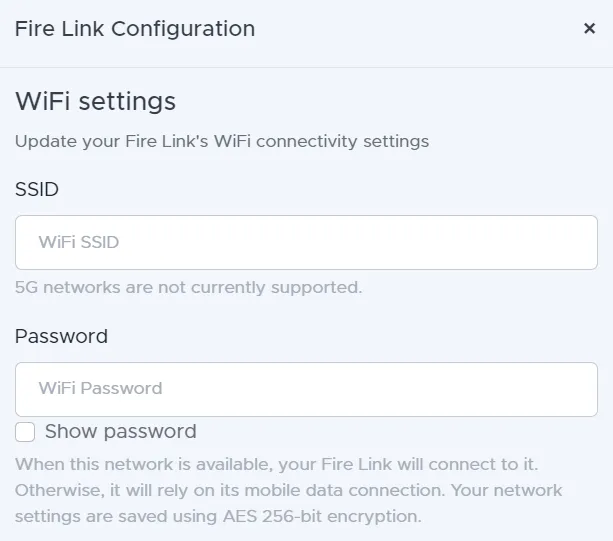
To complete this change, you will need to power cycle your Fire Link.
Connecting over Bluetooth
Your Fire Link also comes equipped with Bluetooth connectivity. Depending on your subscription from your cellular carrier, Android and iOS smartphones can share their network connection over Bluetooth through Bluetooth tethering, and your Fire Link can harness that to connect to Fire Laps.
Turning Bluetooth on or off
To minimize its power draw, effective July 2026, your Fire Link keeps its Bluetooth radio turned off unless you have enabled it. To turn Bluetooth on, go to your Fire Laps Live account settings, find your device in the listing, and click the Configure button. Check the Bluetooth checkbox under "Power & connectivity" and click Save. As with WiFi settings, your Fire Link will pick up the change the next time it connects to Fire Laps, and you will need to power cycle it for the change to take effect. To turn Bluetooth back off, uncheck the same checkbox, save, and power cycle your Fire Link again.
Once Bluetooth is enabled and your Fire Link has restarted, pair your phone with it by following the steps below.
Sharing from Android
To pair your Fire Link with your Android device, follow these steps:
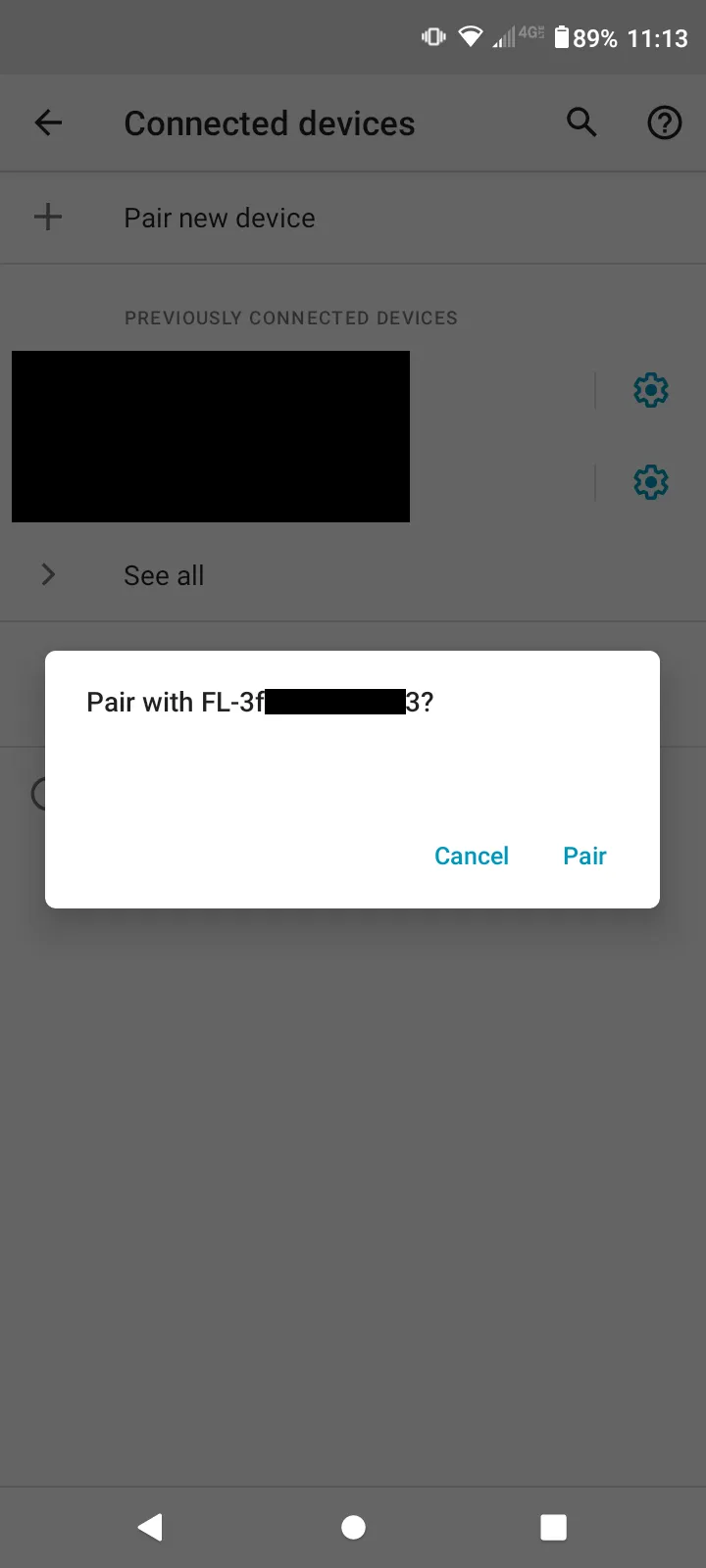
- Pair your phone with your Fire Link over Bluetooth. Make sure Bluetooth is enabled, and go into your Bluetooth settings and tap "Pair new device." Look for a device starting with "FL-" and ending with the sequence of letters and numbers written on your Fire Link's QR code. Tap this device to pair to it.
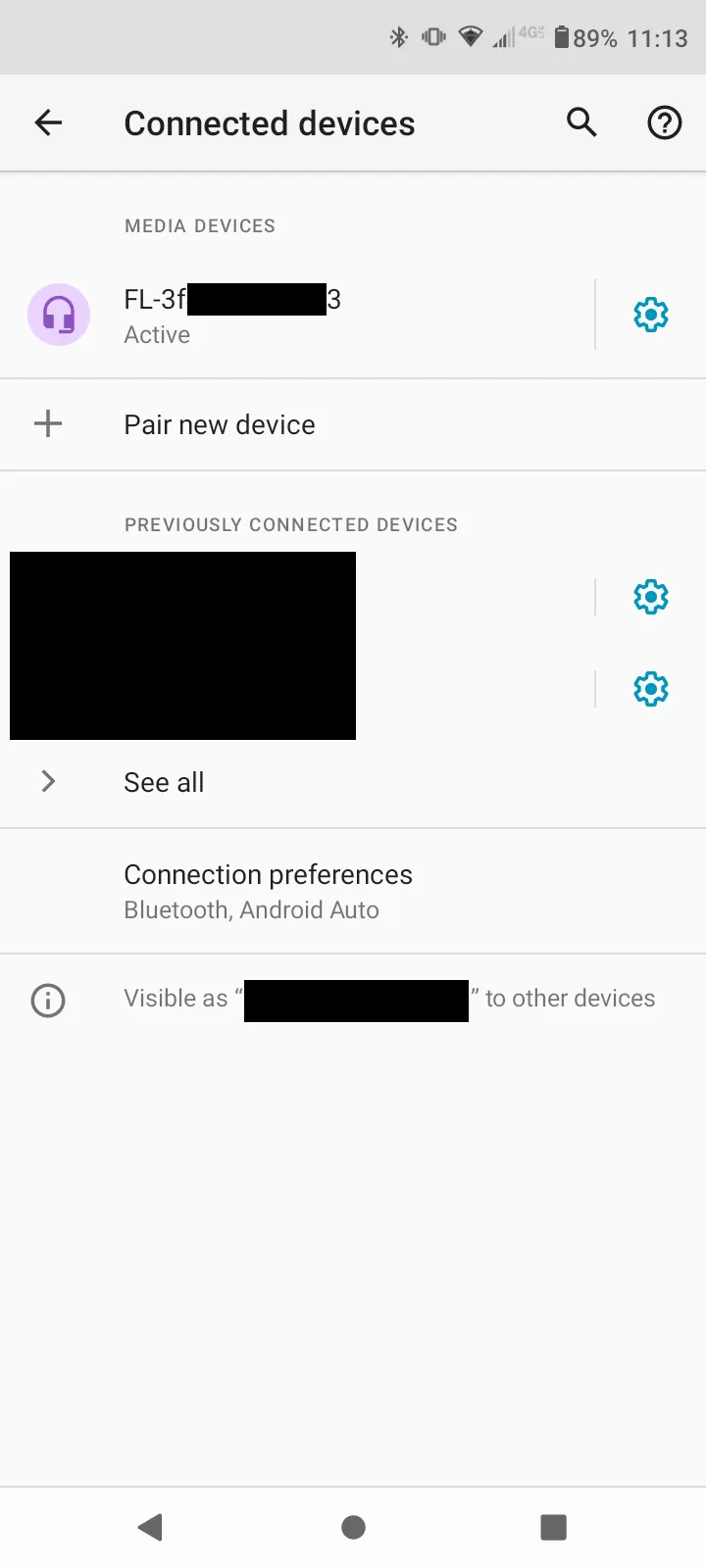
- Verify that your device is paired successfully and is shown as active. By default, your phone may think that your Fire Link is a speaker and microphone, so you may want to disable those features for the connection from your phone.
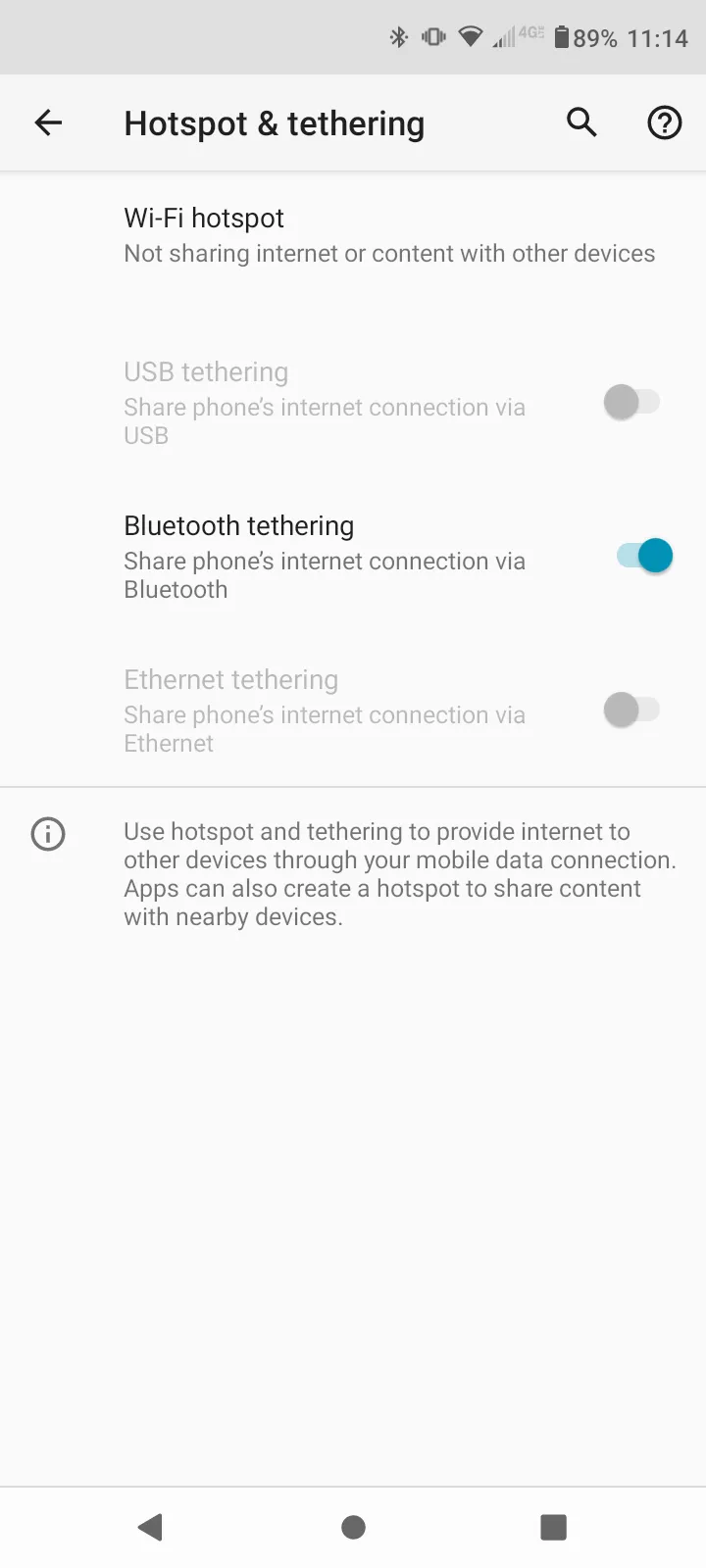
- In your phone settings, enable Bluetooth tethering by navigating to Settings, then "Network & Internet", then "Hotspot & tethering", and enabling the "Bluetooth tethering" option. This will allow your Fire Link to use your phone's network connection.
Sharing from iOS
To pair your Fire Link with your iOS device, follow these steps:
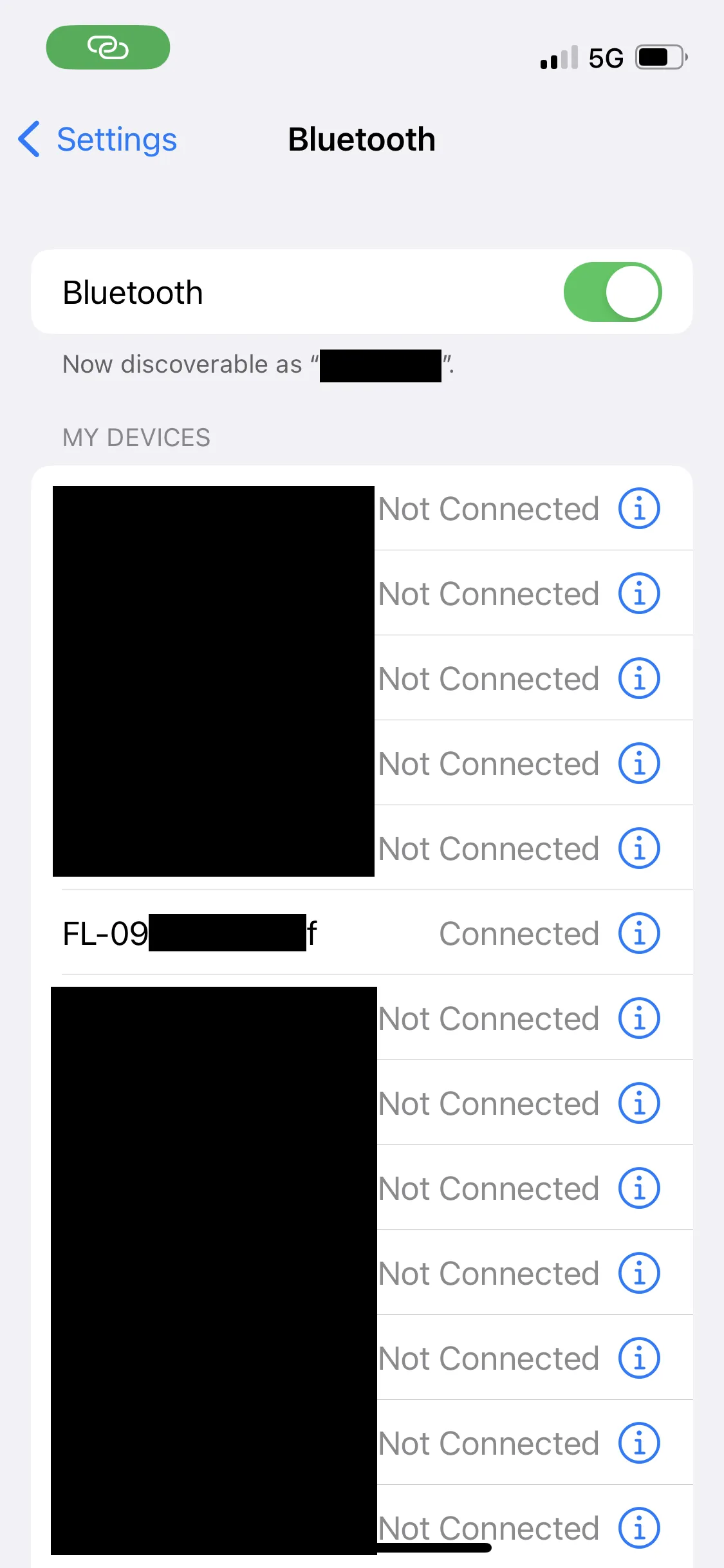
- Pair your phone with your Fire Link over Bluetooth. Make sure Bluetooth is enabled, and go into your Bluetooth settings and tap "Pair new device." Look for a device starting with "FL-" and ending with the sequence of letters and numbers written on your Fire Link's QR code. Tap this device to pair to it. Verify that it shows you are connected.
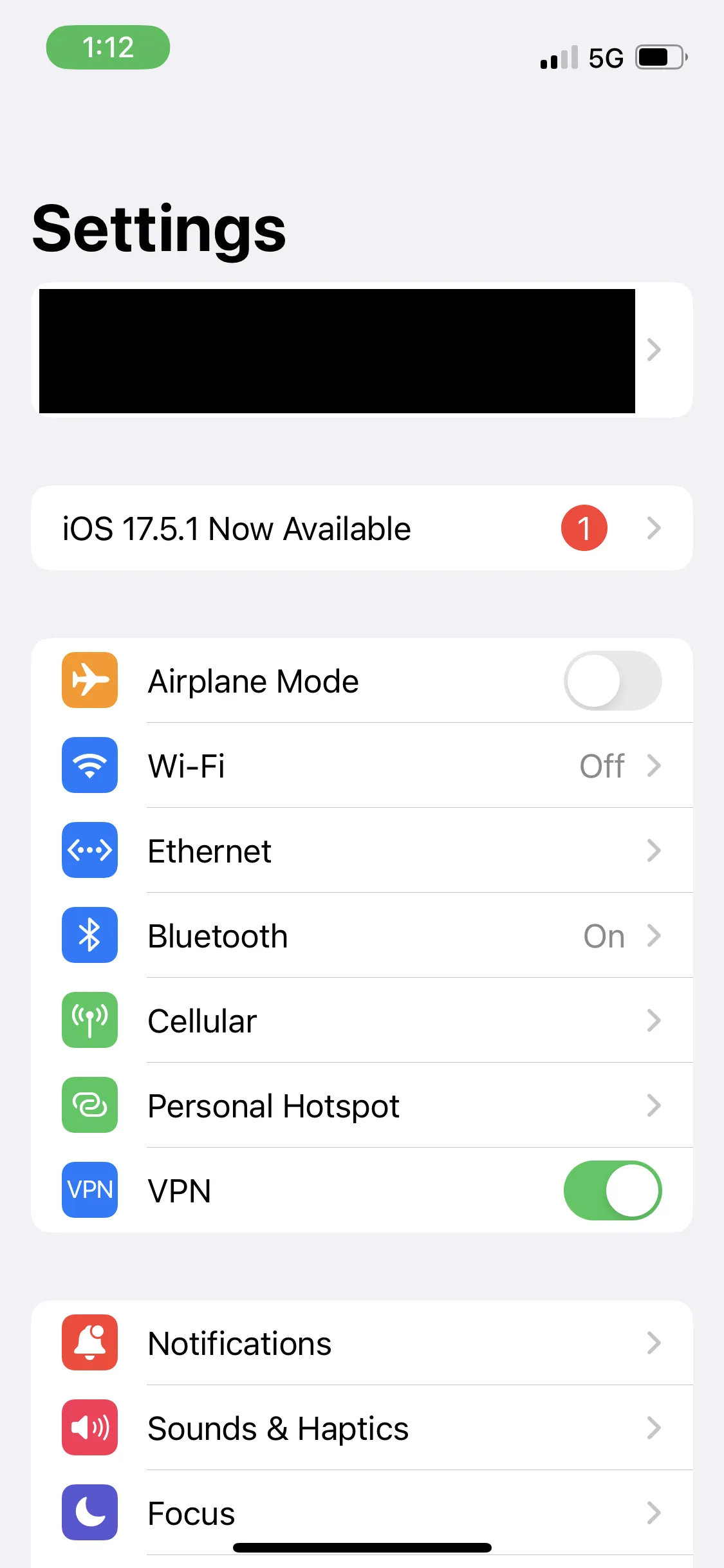
- In the Settings menu, verify that the "Ethernet" option appears. This indicates that Bluetooth tethering is enabled. If it doesn't appear, go to Settings, then Cellular, then Set Up Personal Hotspot and follow the instructions given. More information can be found by consulting Apple support.
Privacy Settings
We understand that your privacy is important, and the Fire Laps philosophy is to give you full control over who can see your data. To this end, we have instituted the privacy protecting measures described here.
First, your location will never be visible to other users unless you are within close physical proximity to a known race track. This lets you keep your Fire Link hardwired into your vehicle at all times with confidence, knowing that you'll never accidentally publicly broadcast your location to other Fire Laps users. This safety measure is always enabled on your account and cannot be disabled. However, note that if your Fire Link is connected to our network and you drive multiple laps in a closed loop of sufficient size, Fire Laps may believe that you are racing at an unknown track, create a track in the Fire Laps database, and offer to analyze your session for you. This is to ensure that you can analyze data at tracks that aren't yet in the Fire Laps database. If this happens by mistake, you can contact support@firelaps.com and we will remove this track from the database.
Second, you are able to control whether your races are streamed to other users or not by selecting the appropriate option in your Fire Laps Live account settings. On the other hand, if you are a member of a group or event that live streams their events, the event administrators will still be able to include you in their public live streams regardless of this setting. This would only apply at the event itself (at the same track and within the date ranges of the event).
Guarantee and Support
Fire Laps offers a 3-year guarantee for all Fire Link devices. If you experience any technical difficulties with your Fire Link, please contact support@firelaps.com with a detailed description of the problem you're experiencing, along with screenshots or pictures of the device if applicable. If we determine that the device is indeed malfunctioning, please contact us for shipping instructions and we will diagnose and fix the problem. This guarantee is void if the case has been opened, if the contents of the device have otherwise been tampered with, or if the device was incorrectly wired, causing a catastrophic failure.
Other Terms and Conditions
- Active membership requirement: As mentioned above, your Fire Link requires an active Fire Laps membership or weekend pass to operate. You can check your membership status at any time on your Fire Laps Live account settings.
- Device resales: You are free to give away or resell your Fire Link after it has been linked to your account. Before you do so, make sure you unlink the device from your account using the Fire Laps Live account settings or by scanning the QR code on the device and tapping "Unlink", otherwise the new user will not be able to link it to his or her account. Furthermore, note that the membership that may have come with your Fire Link is non-transferable; it will only be applied to the first person who links that device to his or her account.